Roku Dev Studio bundles a Model Context Protocol (MCP) server so Cursor, Claude Desktop, VS Code, and other MCP clients can drive a real Roku device from inside a chat — remote control, sideload, App Connector, Network Inspector, and BrightScript debugging, all as callable tools.
127.0.0.1) using a per-launch bearer token — never over the network, and never persisted beyond a single app session.Roku Dev Studio must be running for any live tool to work. A handful of static/meta tools (list_action_types, get_action_schema, get_capability_bundle, validate_script) work even with the app closed. The first live call in a session should be probe_bridge, which returns a clear { live: false, reason } if the app isn't open yet.
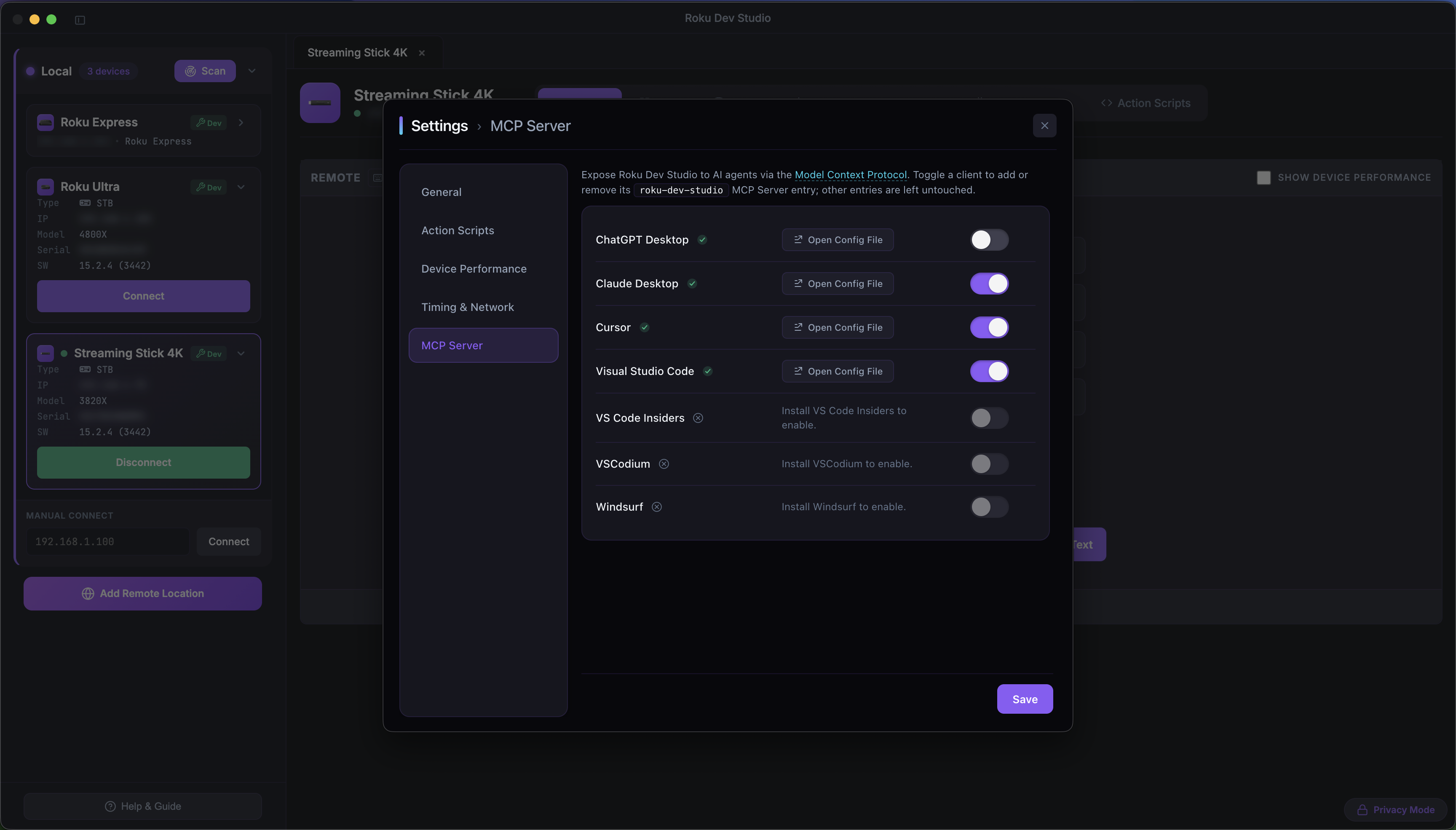
Most users don't hand-edit any config. Open Settings → MCP Server in Roku Dev Studio — each row is a supported host (Cursor, Claude Desktop, VS Code, VS Code Insiders, VSCodium, ChatGPT Desktop, Windsurf). Toggling a row writes or removes only the roku-dev-studio entry in that client's own MCP config file; everything else in the file is left untouched. Hosts that aren't installed are disabled with an inline hint.
For a host not wired up by Settings, add this manually to that client's MCP config:
{
  "mcpServers": {
    "roku-dev-studio": {
      "command": "node",
      "args": ["/absolute/path/to/packages/roku-dev-studio-mcp/dist/index.cjs"]
    }
  }
}The server exposes two kinds of tools so an agent can pick the right one for the job instead of wrapping everything in a script:
One-shot tools that do exactly one thing and return immediately — keypresses, queries, sideload, screenshots, App Connector calls, Network Inspector reads, debugger control, and more.
validate_script + send_script_to_builder — a multi-step, conditional, or polling flow lands in the Action Scripts Builder for a human to review and run. Nothing executes automatically.
Rule of thumb: a single deterministic action is a direct op; a multi-step, conditional, polling, or save-for-later flow is an Action Script.
Every op accepts an optional device (IP or serial) — omit it and the tool targets whichever device tab is focused in the app. For the full list with input/response schemas, see the MCP Tool reference generated from its package.
Resources: quick-start.md, action-script-contract.md, capability-bundle.json, authoring-rules.json.
Prompts: roku-one-shot-action, roku-action-script-quickstart, roku-debug-device.
validate_script rejects any script containing a literal password value.sideload's file path looks like a cloud agent sandbox path, it's rejected with an actionable error — use contentBase64 + filename instead.device; omit it and they use the focused tab, or resolve one first with list_devices / connect_device.Full source, exact parameter schemas, and design notes live in the MCP package README. Also listed on Glama and MCP Market.